Screen Studio Review (2026): Pricing, Features & Honest Verdict
TLDR
Screen Studio is a macOS screen recording app that automatically applies cinematic zoom, motion blur, and smooth cursor effects to your recordings. It turns raw screen captures into polished product demos in minutes. Best for: SaaS founders and content creators making product videos. Price: free with watermark, from $9/month or $229 lifetime. Rating: 7.8/10
What is Screen Studio?
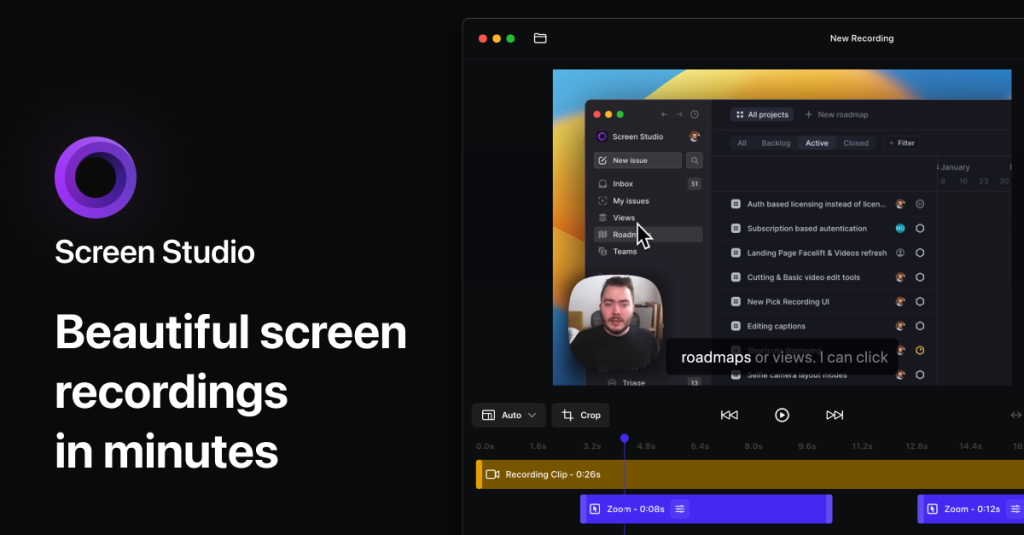
We found Screen Studio while researching tools for creating product demo videos without hiring a video editor. Built exclusively for macOS, Screen Studio records your screen and then automatically applies cinematic effects: smooth zooms on clicks, motion blur, beautiful window backgrounds, and cursor animations. The result looks like a professionally edited product video, but you just hit record and stop.
Screen Studio was a Product Hunt Product of the Week winner and has become the go-to screen recording tool for indie makers, SaaS founders, and developer advocates who need polished video content without the post-production overhead.
Key Features
Automatic Zoom and Motion Effects
The standout feature. Screen Studio automatically detects where you click and smoothly zooms in, adds motion blur during transitions, and creates cinematic panning effects. You can adjust zoom intensity, speed, and smoothing after recording. The effect is subtle but dramatically improves the viewing experience compared to raw screen recordings. No manual keyframing required.
AI Transcription and Subtitles
Screen Studio generates accurate transcripts on-device and overlays them as subtitles on your video. The transcription runs locally using Whisper, so your audio data stays private. You can edit the transcript, customize subtitle styling, and export SRT files. Quality is good for English; other languages are supported but less accurate.
Customizable Backgrounds and Framing
Instead of recording a full desktop, Screen Studio can frame your recording window with customizable backgrounds (gradients, solid colors, images). This creates the polished “floating window” look that you see in most modern product demos. You can add padding, rounded corners, shadows, and adjust the window scale. The result looks like a marketing screenshot come to life.
Camera Overlay
A webcam bubble overlay sits in the corner of your recording for talking-head-style content. You can position it anywhere, resize it, choose circle or rectangle shapes, and add border styling. Useful for tutorials and walkthroughs where you want a personal presence without switching to a full video editor.
Pricing
Screen Studio offers three pricing options. Monthly at $29/month, Annual at $9/month (billed yearly at $108), and a Lifetime purchase at $229. There is a free tier with basic recording capabilities and a watermark. Students and educators get 40% off. The lifetime option pays for itself after about 2 years compared to the annual plan.
For a single-purpose screen recording tool, $9/month is reasonable but not cheap. Loom offers more features (sharing, analytics, collaboration) at $12.50/user/month. OBS is free but requires significant manual effort. The value proposition depends on how much time Screen Studio’s automatic effects save you compared to manual editing.
| Plan | Price | Plan Features | Best For |
|---|---|---|---|
| Free | $0 | Basic recording with watermark | Trying the app before purchasing |
| Monthly | $29/month | All features, no watermark, cancel anytime | Short-term or occasional use |
| Annual | $9/month ($108/year) | All features, no watermark, 70% savings | Regular video creators |
| Lifetime | $229 one-time | All features forever, future updates included | Long-term users who produce videos frequently |
Who Should Use Screen Studio
Screen Studio works best for indie makers, SaaS founders, developer advocates, and content creators who regularly produce product demos, tutorials, and changelogs. If you make 2+ product videos per month and want them to look professional without learning video editing, Screen Studio pays for itself. It is less useful for teams needing async video communication (use Loom), live streaming (use OBS), or non-Mac users (Screen Studio is macOS only).
Where Screen Studio Falls Short
macOS only, with no Windows or Linux version. No collaboration features for teams. The automatic effects are impressive but occasionally zoom to the wrong spot or at awkward timing, requiring manual adjustment. Export times can be slow for long recordings. And at $229 for lifetime or $108/year, it is a significant investment for a screen recording tool when free alternatives exist.
Alternatives
Loom
The standard for async video communication. Loom focuses on recording and sharing quick videos with teammates, not polished product demos. Better for internal communication, worse for marketing content. From $12.50/user/month.
OBS Studio
Free, open-source screen recording and streaming. Massively configurable but requires manual setup for every effect Screen Studio automates. Best for live streamers and power users willing to invest time in configuration.
CleanShot X
A macOS screenshot and screen recording utility. Simpler than Screen Studio with basic video recording, scrolling capture, and annotation tools. Does not have the cinematic auto-zoom effects. One-time purchase at $29.
FAQ
Is Screen Studio worth $229 for lifetime?
If you produce product videos regularly (2+ per month), the time saved on editing pays for itself within a few months. For occasional use, the monthly plan at $29 or annual at $9/month is more sensible.
Can Screen Studio replace a video editor?
For product demos and tutorials, mostly yes. The automatic effects handle 80% of what you would do in a video editor. For complex edits with multiple clips, transitions, or graphics, you still need Final Cut Pro or DaVinci Resolve.
Does Screen Studio work on Apple Silicon?
Yes. Screen Studio is optimized for Apple Silicon Macs and uses the hardware encoder for fast exports. It runs on both Intel and Apple Silicon, but performance is noticeably better on M-series chips.
How is Screen Studio different from Loom?
Screen Studio focuses on producing polished, cinematic recordings. Loom focuses on quick, shareable video messages with team features. Screen Studio outputs higher quality video; Loom offers sharing, analytics, and collaboration.
Screen Studio Pros & Cons
What We Like
- Automatic cinematic zoom and motion effects require zero manual editing
- On-device AI transcription keeps audio data private
- Beautiful customizable backgrounds create polished product demo aesthetics
- Lifetime purchase option eliminates recurring subscription costs
What Could Be Better
- macOS only, no Windows or Linux support
- Auto-zoom occasionally targets wrong area, requiring manual adjustment
- No collaboration or sharing features for teams
- Expensive for a single-purpose tool when free alternatives exist
Screen Studio FAQ
Is Screen Studio worth $229 for lifetime?
If you produce 2+ product videos per month, the time saved pays for itself within months. For occasional use, the monthly or annual plan is more sensible.
Can Screen Studio replace a video editor?
For product demos and tutorials, mostly yes. For complex multi-clip edits with transitions and graphics, you still need a full video editor.
Does Screen Studio work on Apple Silicon?
Yes. It is optimized for Apple Silicon with hardware encoding for fast exports. Runs on both Intel and M-series, but performance is better on Apple Silicon.
How is Screen Studio different from Loom?
Screen Studio focuses on polished, cinematic output. Loom focuses on quick shareable videos with team features. Different tools for different goals.
What is Screen Studio?
macOS screen recording app with automatic cinematic zoom, motion blur, and polished backgrounds. Turns raw captures into professional product demos.
How much does Screen Studio cost?
Screen Studio pricing starts at $9/month (annual) or $229 lifetime. A free plan is available.